Rules that write themselves. You still sign off.
A new client's first month is the slowest month QBuddy ever has: every line on the statement waits for a person. Smart Categorize groups those lines by payee, suggests the account for each one with the reason, and turns the ones you accept into rules in one click. Next month, the same lines arrive blue.

The slowest month is the first one.
Every firm knows the moment. A new client signs, the first statement arrives, and every line on the review is white: no rule yet. Someone has to decide, line by line, where two hundred transactions go, then write the rules one at a time so next month is easier. The person who knows the client is busy, and the new hire does not know yet that SiteOne is landscaping materials and Sysco is food cost.
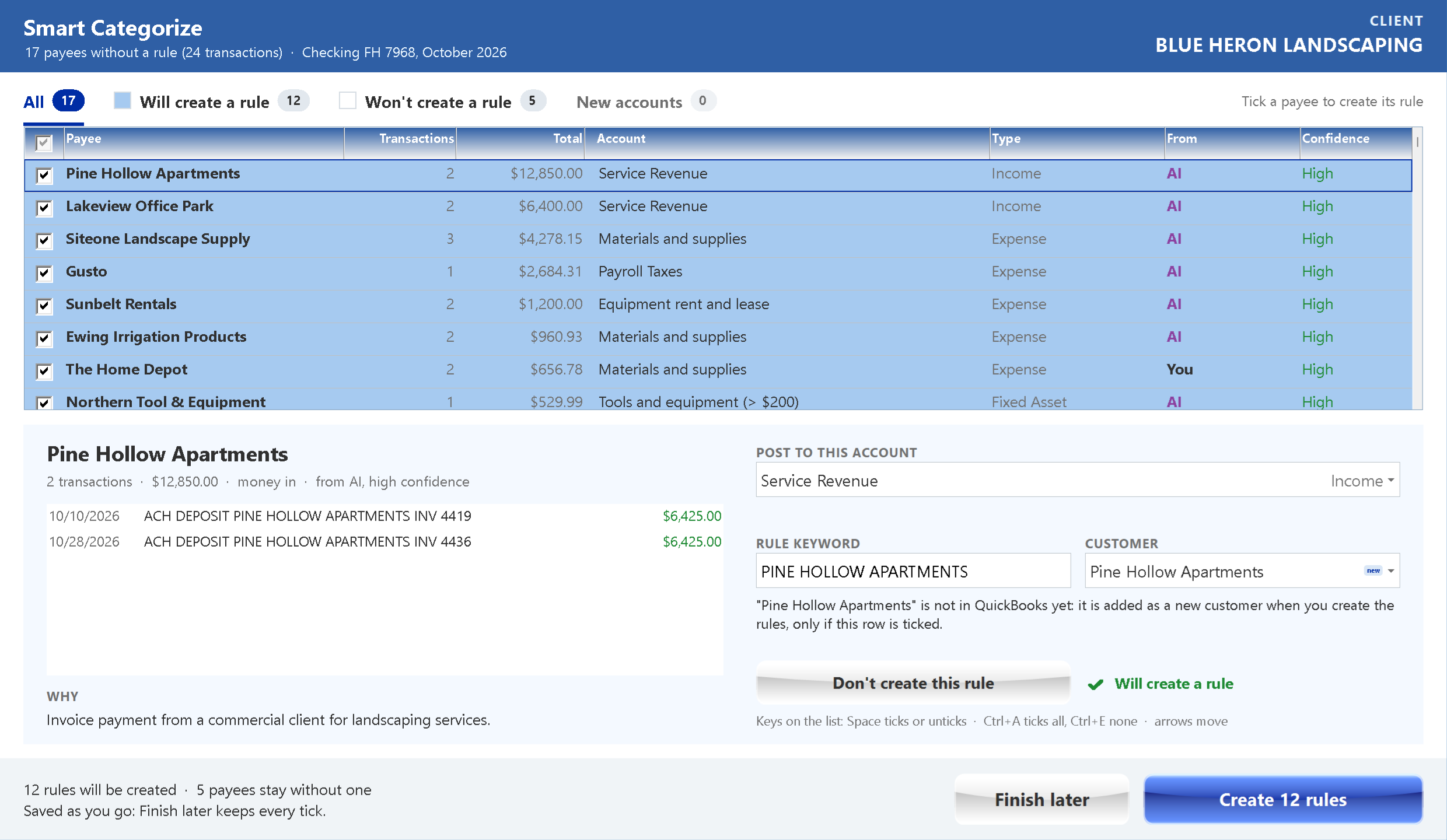
- 24 lines with no rule yet
That first month is where onboarding hours go, and it decides how good every month after it will be. It shows up in four places:
The new client
No rules, all white lines, and the person who knows the client is busy.
The catch-up
Twelve months of a shoebox client, and every line is a decision.
The rules nobody trusts
Written by someone who left, posting to the wrong account for years.
The new hire
Good with the books, new to your clients' payees.
Three steps. The first month, done.
Smart Categorize lives on the review: a blue button with the count of lines that have no rule, or a right click on the review. Three steps, and the first month is done.
Group and suggest
Click Smart Categorize on the review. QBuddy groups the lines without a rule by payee, checks your firm's own rules first, then how businesses like this client commonly categorize each payee, and asks AI about the rest. Every answer is checked against the client's own chart of accounts.
The work runs on QBuddy's server, so you can close the window and come back: the suggestions wait for you.
Review with the reason
One row per payee: the suggested account, where it came from and how sure it is. Click a row to see its transactions and the reason, in words. Change the account, the keyword, the vendor or the customer before you apply; a row you change says You.
Every suggestion carries a confidence, High, Medium or Low, and Low is never ticked for you. A new account is proposed only when nothing in the chart fits, and it is marked new.
- Where it came from, how sure
- The reason, in words
- One click makes the rules
One click creates every rule
Before anything changes, QBuddy shows exactly what will happen: the new rules, the new vendors or customers it adds to QuickBooks first, and the payees that stay as they are. Apply, and the statement is checked again on the spot.
Next month, the same payees arrive blue and post themselves. The time you save compounds.
- One click puts it all back
One sample statement of an invented client, on our test machine, with suggestions back in seconds. Every statement is different; the screens above are that statement.
Your firm first. Then what firms agree on. Then AI.
It is not a guess machine. It is your firm's memory, with help for the gaps, in a fixed order of trust. The From column of every row says which one answered.
- Your firm
What your firm already decided
Your own rules for this client and for your other clients come first. If your firm already has an answer, that is the suggestion.
- Common practice
What other firms agree on
How businesses like this client commonly categorize a payee. A payee and its account are kept only when two or more firms agree, and the list is rebuilt every night.
- AI
Help for the gaps
For payees nobody has a rule for, AI suggests an account from the client's own chart, with its reason. Where common practice answers, AI gives a second opinion beside it. It never posts anything.
- You
The last word
Change any suggestion and the row says You. Nothing is final until someone at your firm applies it.
rules written by accounting firms in QBuddy: the experience behind Your firm and Common practice
payees common practice knows, rebuilt every night
firms must agree on a payee's account before common practice keeps it. Never a firm, a client, an amount or a date.
- Common practice, with AI's answer beside it
- The reason
It suggests. You decide. Every time.
Smart Categorize never posts anything and never changes a rule on its own. It prepares; your firm decides.
Nothing changes until you apply
Tick, untick, edit. Finish later keeps every tick, and nothing reaches your rules or QuickBooks before someone at your firm applies.
You see why
Every row shows where its suggestion came from, how sure it is and the reason, in plain words.
Undo the whole session
Each Smart session is one entry in the client's rule history. Undo its whole session puts every rule back the way it was, and a change made since is never overwritten.
Every change recorded
The History tab of the Rules window lists every change to a client's rules: when, who and what.
Your chart stays yours
A new account is proposed only when nothing in the chart fits, marked new, and created only if you tick it.
An admin can turn it off
Included for every firm. Each person agrees to the terms the first time, and an admin can turn it off for the whole firm at any time.
The rules you already have deserve a second look.
Three years ago someone wrote a rule that sends Shell Oil to Meals and Entertainment. It has posted there every month since. Second Opinion says Gas and fuel, and shows why.
Right click a statement and choose Second opinion on the rules. QBuddy puts each rule this client already has beside what common practice and AI suggest, the ones that differ first, and marks the rest Same as your rule. You change only the ones you choose; nothing changes until you apply, and one click undoes it.
- Your rule now, beside the suggestion
- The reason
- 2 differ: your rule and the suggestion
- 18 the same
Quality control, without reading every rule
A second look at every client's rules, with the ones that differ first and Same as your rule on the rest.
Bring your old rules. They get checked.
The rules you bring get a second look on day one, so years of habits do not move into QBuddy unexamined. Smart Categorize can also check the rules a statement already uses, listed apart under Your existing rules.
Tell QBuddy what the client does. Once.
Suggestions follow the industry. A landscaper's SiteOne is materials; a restaurant's Sysco is food cost. You tell QBuddy what a client does once, from the list or in your own words, and the industry stays with the client.
To change it later, click Change beside the industry on the client's page, or All clients to see and change every client's industry at once. Industries your firm adds are visible to your firm only.

The client's page: the industry, with Change, Smart Start and All clients beside it. Sample client.
A new client's chart, ready on day one.
Smart Start proposes the accounts that kind of business usually has and the client's chart is missing, each with why. Untick what the client does not need; the rest are created in QuickBooks with one click, and nothing else changes. Accounts already in the chart are never proposed twice, and Smart Categorize has the right accounts to suggest from the first statement on.
What leaves QBuddy, and what never does.
Your client's name, account numbers and your firm's name never leave QBuddy. What is sent is used to answer, never to train AI.
Never leaves QBuddy
Your client's name, bank account numbers and your firm's name.
What the AI service sees
Only what it needs to suggest an account: the description, amount and date of the transactions it is asked about, the client's industry and the names of the client's QuickBooks accounts.
Never used to train AI
What is sent is used to answer, never to train AI.
Common practice keeps no client
Only what two or more firms agree on, a payee and an account category. Never a firm, a client, an amount or a date, and none of it goes to any AI.
Each person at your firm agrees to the Smart Categorize terms the first time, and an admin can turn it off for the whole firm at any time. The details are in our Privacy Policy.
What firms ask first.
I don't trust AI with my books.
Neither do we, which is why it never posts anything. It suggests; you decide. Your firm's own rules come first, AI only answers what nobody has a rule for, and every change is recorded and can be undone.
What about my clients' data?
Your client's name, account numbers and your firm's name never leave QBuddy. What is sent is never used to train AI. Common practice keeps only what two or more firms agree on, never a firm, a client, an amount or a date.
QuickBooks Online already has bank rules.
Bank rules you write one by one, per company, from scratch. Smart Categorize writes them for you, for the whole statement, on QuickBooks Online and every Windows Desktop version, from your firm's experience across every client.
Will it make a mess of my chart?
No. It proposes a new account only when nothing in the chart fits, says so with a new tag, and creates nothing you did not tick.
Does it cost extra?
No. Smart Categorize is included for every firm.
Does it work on QuickBooks Desktop?
Yes. QuickBooks Online and every Windows Desktop version, journal entry clients too.
Can I change my mind?
Yes. Every Smart session is one entry in the client's rule history, and Undo its whole session puts every rule back the way it was. A change made since is never overwritten.
Do we have to use it?
No. Nothing happens until someone clicks Smart Categorize, and an admin can turn it off for the whole firm at any time.
Read next
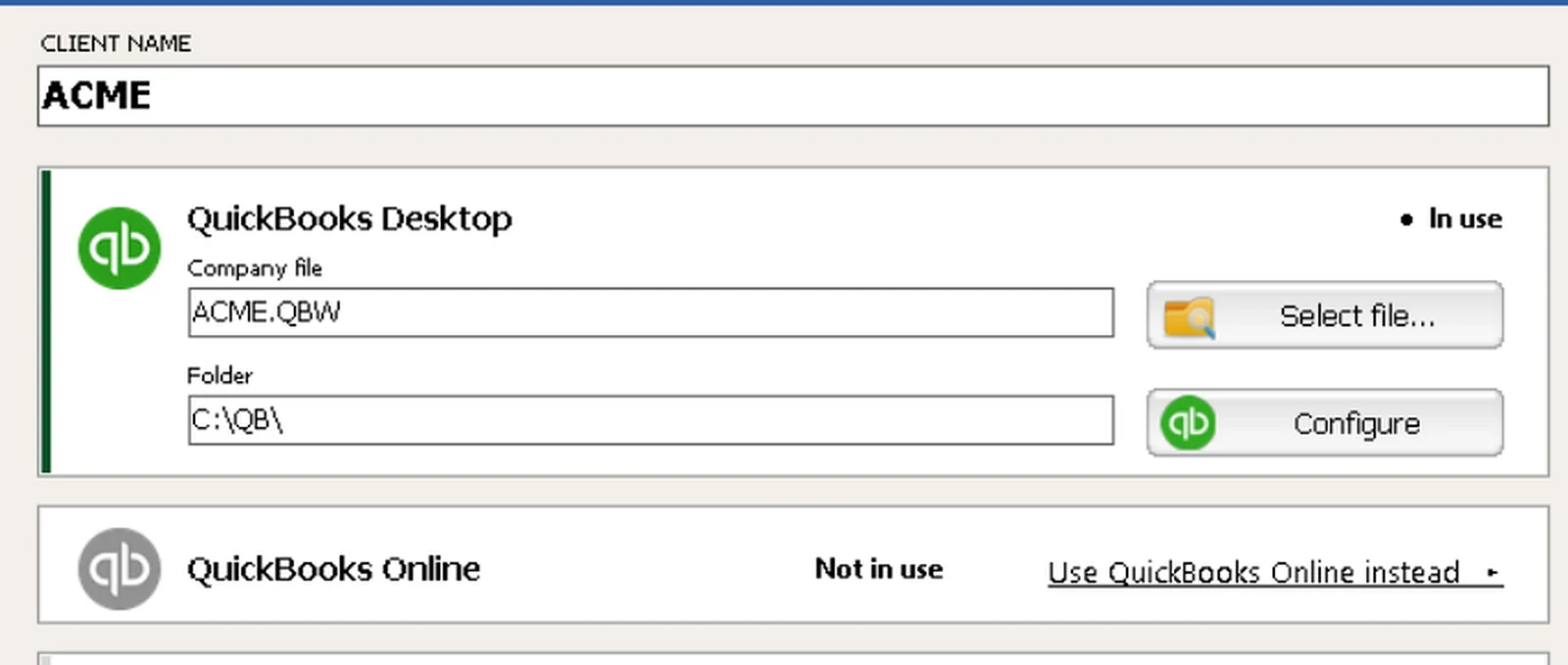
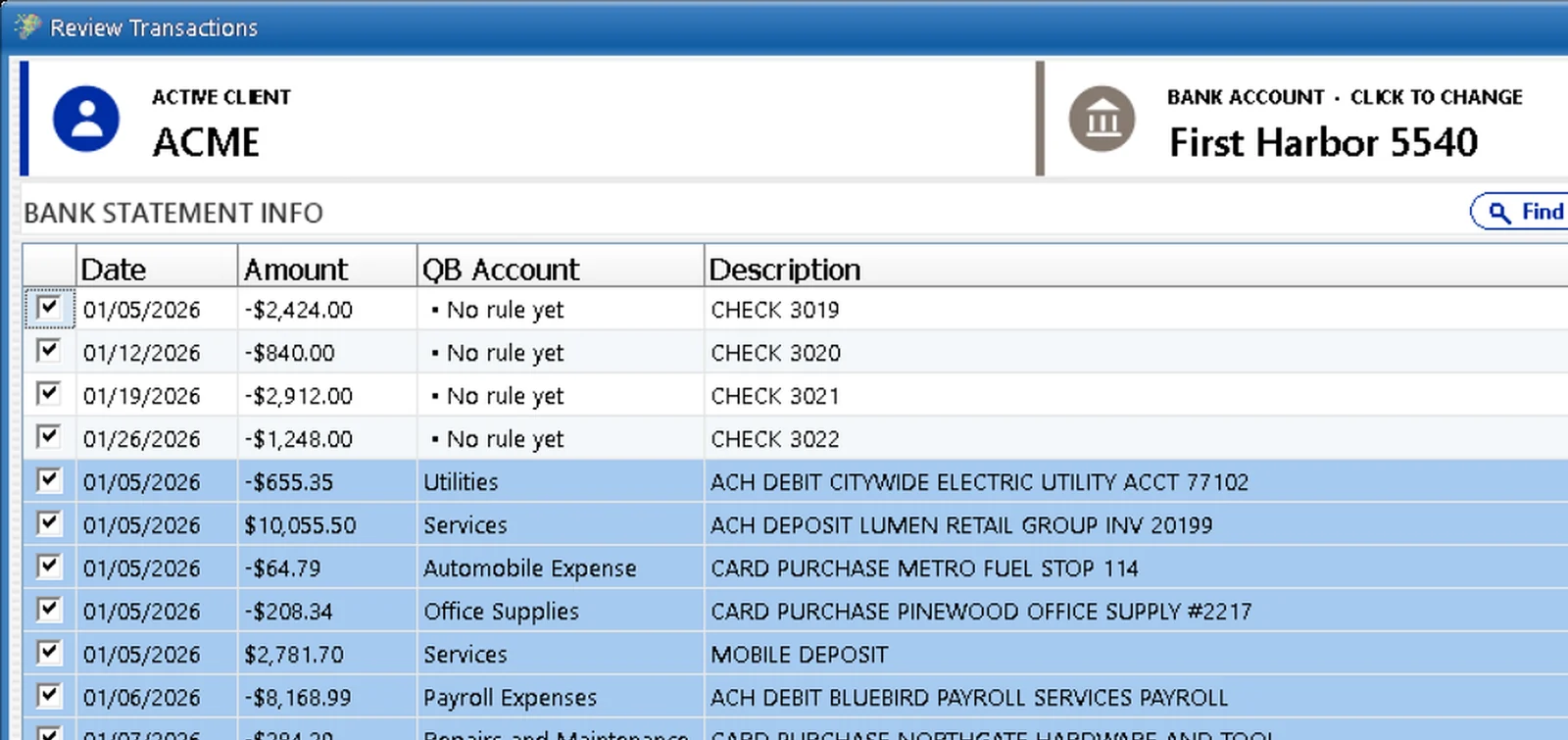
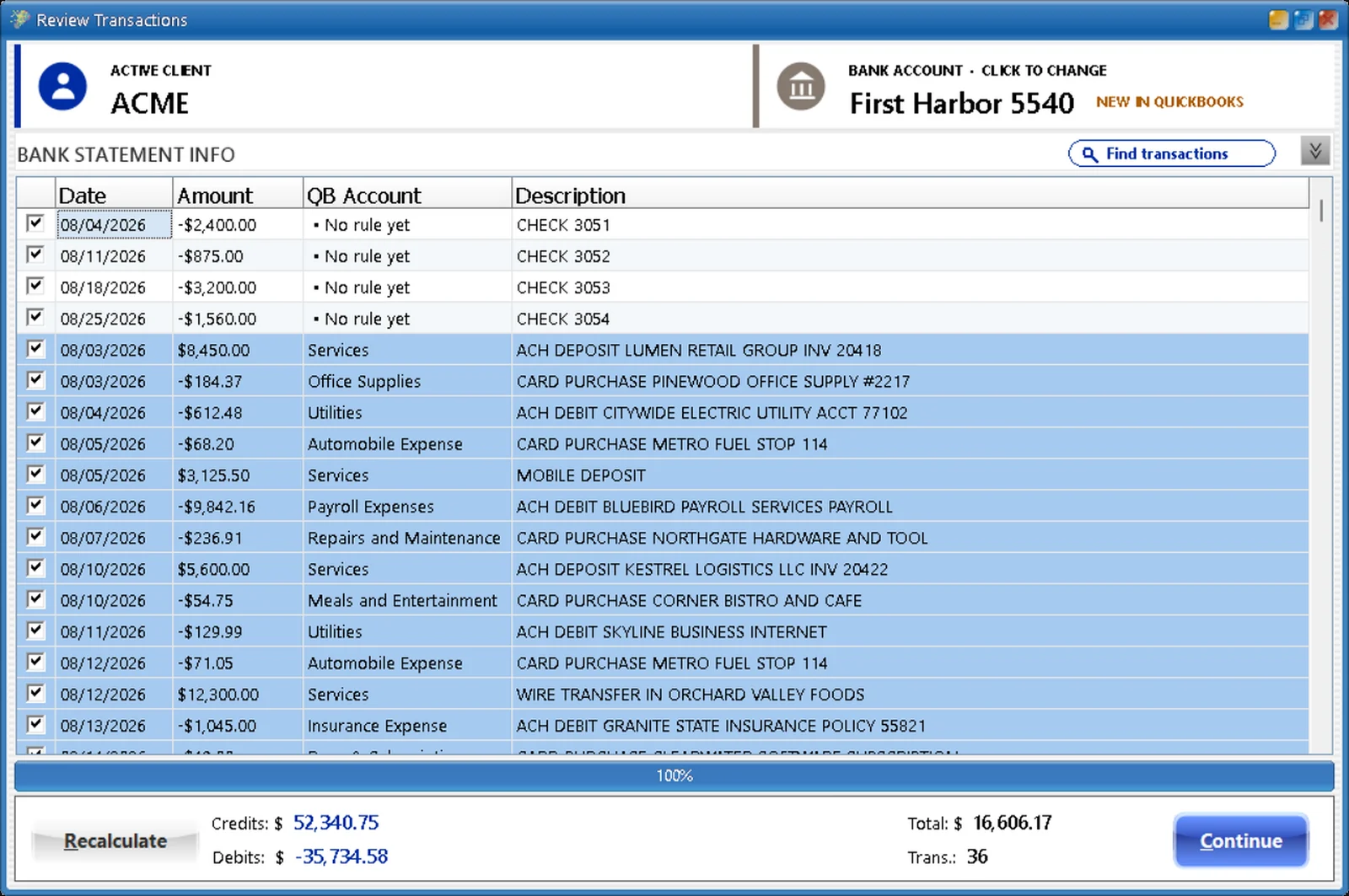
Every payee. A suggested account. A reason. Your call.
Book a 15-minute demo and watch Smart Categorize turn a new client's white lines into rules, live, on QuickBooks Online or any Windows Desktop version.